
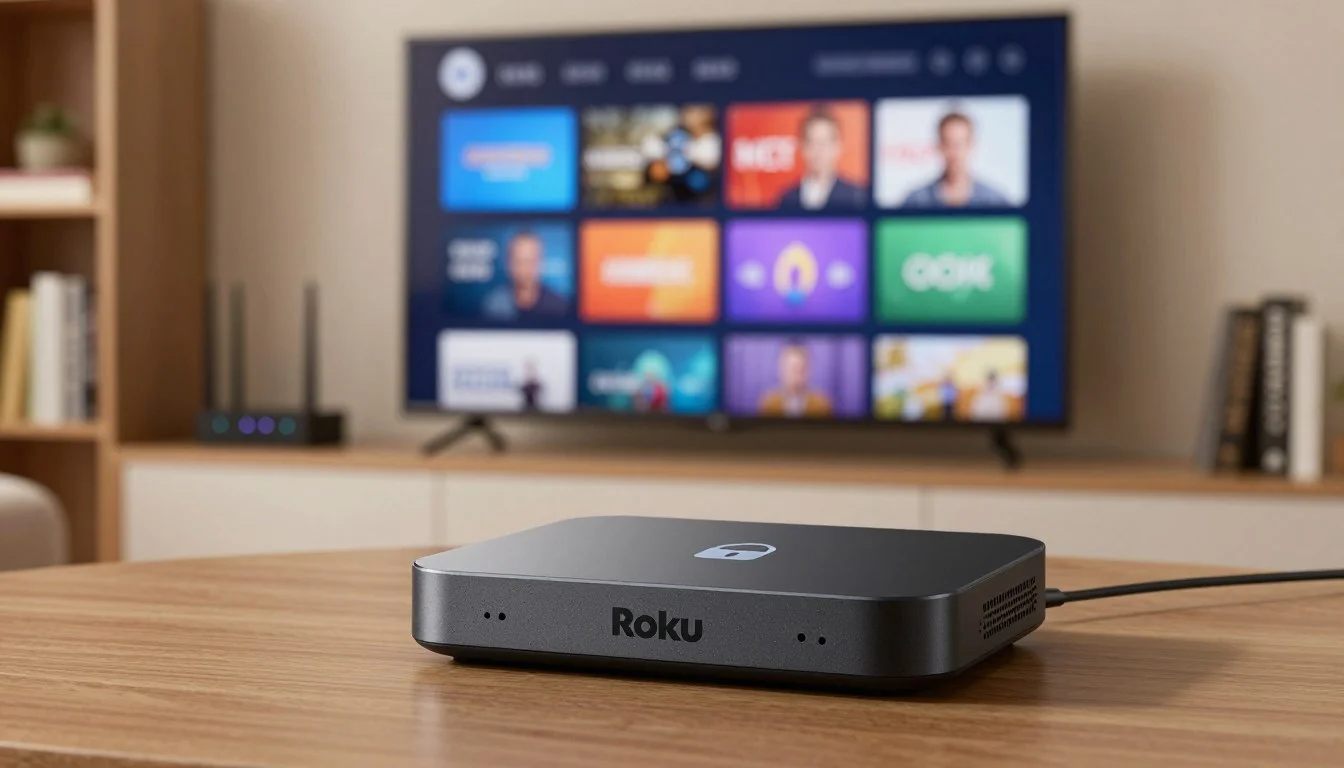
If you've ever searched for an IPTV app on the Roku Channel Store, you already know the answer. It isn't there. You scroll past Netflix, Crave, Prime Video, and a dozen free ad-supported channels, but the IPTV players you've heard about — IPTV Smarters, TiviMate, IBO Player Pro — are nowhere to be found.
That's not you doing something wrong. It's Roku being Roku. The platform has always been the most locked-down of the major streaming devices in North America, and nothing has changed in 2026. Roku doesn't allow third-party IPTV players in its official channel store, full stop. So if you own a Roku and you want to use your IPTV Canada subscription on it, you need to think differently.
This guide walks through what actually works for Roku owners in Canada right now, what doesn't, and the three methods we've seen work reliably for real customers. Every one of them uses IBO Player Pro as the recommended player, because it's the app we ship with our subscriptions and the one that handles mirroring best. By the end, you'll know exactly which path fits your setup.
Why There's No Native IPTV App on Roku
Let's get the technical explanation out of the way quickly. Roku controls what goes into its channel store, and its content policies don't allow third-party IPTV players. This isn't about legality — it's about platform control. Roku wants every experience on its device to go through its own distribution channel, and IPTV apps don't fit that model.
The practical consequence is simple: you cannot sideload an APK on a Roku the way you can on a Firestick. There's no developer mode that unlocks Android apps. The platform is closed, and no IPTV provider has found a legitimate way around that.
So the question isn't "which IPTV app should I install on Roku?" It's "how do I get my IPTV stream onto my Roku TV?" That's the question this article answers.
The 3 Methods That Actually Work for Roku in Canada
Every viable approach to IPTV on Roku comes down to screen mirroring — pushing the video from another device to your TV. The difference between methods is which device does the work and how smooth the connection feels.
| Method | Best For | Roku Compatibility | Video Quality |
|---|---|---|---|
| AirPlay 2 | iPhone & iPad users | Most Roku devices from 2019+ | Excellent |
| Miracast | Windows PC users | Roku Streaming Stick+ and newer | Good |
| Castify | Android users | All Roku devices | Decent |
Method 1 — AirPlay 2 for iPhone and iPad
If you're in the Apple ecosystem, this is the cleanest path. Many modern Roku devices support AirPlay 2, which lets you mirror your iPhone or iPad directly to your TV. The big advantage is that AirPlay is a native Apple protocol, so the connection is more stable than third-party casting apps.
The setup is quick. On your Roku, go to Settings, then Apple AirPlay and HomeKit, and confirm AirPlay is enabled. Install IBO Player Pro on your iPhone — it's available in the App Store and it comes with a free seven-day trial. Load your IPTV Canada credentials through Xtream Codes, and you'll have your full channel list ready. Then open Control Center on your iPhone, tap Screen Mirroring, and select your Roku.
One thing worth knowing: your iPhone needs to stay awake during playback. Adjust the auto-lock timer before starting a movie or a live game, or you'll lose the stream when the screen dims. Beyond that, AirPlay handles IPTV well. Channel changes are fast, the picture stays sharp on 1080p and 4K streams, and the audio syncs cleanly through the Roku's HDMI output.
Method 2 — Miracast for Windows PC
Windows users can mirror to Roku using Miracast, which is built into Windows 10 and 11. The connection isn't always as smooth as AirPlay, but once it's established, it's reliable enough for daily use.
On your Roku, go to Settings, then System, then Screen mirroring, and set it to Prompt. On your PC, press the Windows key and K together and select your Roku from the list. Open IBO Player Pro on your PC — the Windows version works with Xtream Codes just like the mobile apps — and load your playlist. Start any channel and hit fullscreen. It appears on your Roku within a second or two.
The advantage of using a PC is that you can browse channels, manage your EPG, and organize favourites on the computer while the TV stays on the current stream. If you're the kind of person who likes having the full interface in front of you, this method feels the most "native."

Method 3 — Castify for Android Users
Android users need a third-party casting app. Castify is the one we recommend. It's available for Android, it handles M3U playlists and Xtream Codes, and it casts directly to Roku without needing a Chromecast-style dongle.
Install IBO Player Pro on your Android phone or tablet from the Google Play Store, load your IPTV Canada credentials, and confirm the channel list looks good. Then open Castify, select your Roku as the target, and mirror your screen. Castify gives you a built-in remote function on your phone, which is handy because you don't have to juggle the Roku remote while casting.
The free version of Castify is ad-supported, and there's a slight delay between your phone and the TV. If you use it often, the premium version removes ads and improves stability. For occasional use, the free version is fine.
Why We Recommend IBO Player Pro for Roku Mirroring
Since mirroring is the only real path to IPTV on Roku, the player you use on your phone or PC matters a lot. We recommend IBO Player Pro for a few practical reasons, and they hold up whether you're on iPhone, Android, or Windows.
- Rock-solid during mirroring. IBO Player Pro holds a stable video feed even when the mirroring connection has small hiccups, which is critical when you're adding an extra hop between your device and the TV.
- Fast channel zapping. Under a second between channels, even on high-bitrate 4K streams. That matters when you're surfing live sports.
- Seven-day free trial. You can test it with your IPTV Canada subscription before deciding whether to keep it.
- Xtream Codes support. The app logs in through Xtream Codes API, which is the fastest way to pull your full channel lineup and EPG.
- Cross-platform. The same app works on iOS, Android, and Windows — so if you switch devices later, you don't have to learn a new player.
One thing to be clear about: IBO Player Pro is a paid app with its own small subscription paid to the developer. It's not included with your IPTV Canada plan. But the free trial means you can try it risk-free, and in our experience, most customers stick with it once they see how smooth the mirroring experience is compared to free alternatives. If you want to buy an activation licence, message us on WhatsApp and we'll walk you through it in a couple of minutes.
What About Roku Media Player and Official Telecom IPTV?
Two other things come up when people ask about Roku and IPTV, so let's address both honestly.
Roku Media Player is a free channel that can sometimes play M3U files directly. In theory, this would let you load your playlist without casting. In practice, it's a poor experience. There's no EPG, no channel logos, no favourites, and many M3U links from real IPTV providers won't load because they expect a dedicated player. Treat it as a last resort for testing a single stream, not as a daily setup.
Official Canadian telecom IPTV services — like Freedom Mobile's TV package — do work on Roku. But those are closed systems. You're locked into their channel lineup, their pricing, and their terms. You can't load your own subscription into them. If your goal is to use an IPTV Canada subscription on your Roku, these services don't help.

Is Roku the Right Device for IPTV in Canada?
Honest answer: no, not really. If you're buying a device specifically for IPTV, a Firestick or Android box is a better choice. Both let you install IBO Player Pro natively, which means no casting, no second device running, and no delay. That's the setup most Canadian cord-cutters end up with, and it's the one we recommend in our Firestick setup guide.
But if you already own a Roku and you don't want to buy another device, the mirroring methods above work fine. They're not the same as having a native app, but they get the job done for movie nights and hockey games.
What to Watch Out For
Provider stability matters more with mirroring than with a native app. Any weakness in your IPTV provider's servers gets amplified when you add a casting hop. Test with a free trial before committing, and if you want to know what a well-built Canadian provider looks like, our guide on choosing an IPTV Canada subscription covers it in detail.
Network quality is critical too. Your Roku and your phone or PC need to be on the same Wi-Fi network, ideally on the 5GHz band. If your router is congested, or if one device is on 2.4GHz and the other on 5GHz, the stream will stutter. It's worth logging into your router and confirming both devices are on the same band.
Finally, don't expect perfect channel surfing. With mirroring, every channel change happens on your phone or PC and mirrors to the TV. It works, and with IBO Player Pro it's surprisingly snappy, but it's not the same instant feel as a native app on a Firestick.
You Can Absolutely Do This
IPTV on Roku in Canada is possible — it's just a workaround, not a native experience. Between AirPlay 2, Miracast, and Castify, every major device family has a viable path. And with IBO Player Pro running on the source device, the whole setup feels polished enough that most people forget they're mirroring at all.
If you want the fastest path from here to watching, message our team on WhatsApp and mention you're setting up on Roku. We'll send you IBO Player Pro activation details, help you load your IPTV Canada subscription, and confirm the mirroring is working before you sit down to watch. Or if you're still deciding which device is right for you, our IPTV Canada plans page shows what every tier includes, and our verified customer reviews show what real Canadians say after they've set it up. 🍁
Frequently Asked Questions
05 QuestionsIs there a native IPTV app for Roku in Canada?
No. Roku does not allow third-party IPTV players in its official channel store, in Canada or anywhere else. The only way to use an IPTV subscription on Roku is to screen mirror from another device, such as an iPhone with AirPlay 2 or an Android phone with Castify. IBO Player Pro on the source device gives the smoothest experience.
Can I use IBO Player Pro directly on Roku?
No. IBO Player Pro is not available in the Roku channel store. However, it works perfectly on the device you mirror from — iPhone, iPad, Android phone, or Windows PC — and the mirrored stream appears on your Roku without any loss in quality. The free seven-day trial lets you test it before committing.
What is the best Roku device for IPTV mirroring?
For AirPlay 2, any Roku released from 2019 onward works well, including the Roku Streaming Stick 4K, Roku Express 4K+, and Roku Ultra. For Miracast, the Roku Streaming Stick+ and newer are best. In general, a wired or 5GHz Wi-Fi connection on both the Roku and the source device keeps the stream smooth.
Does IPTV buffering get worse when mirroring to Roku?
It can, because mirroring adds an extra hop between your provider and the TV. Provider stability matters more than ever in this setup. If your provider is solid and both devices are on the same Wi-Fi band, the stream stays smooth. If it buffers, check your provider first before assuming the mirroring is the problem.
Is IPTV on Roku worth it, or should I buy a Firestick?
If you already own a Roku and don't want to buy another device, mirroring works fine. But if you're buying a device specifically for IPTV, a Firestick 4K Max is easier — you install IBO Player Pro natively, there's no casting lag, and the setup takes about five minutes. Our Firestick setup guide walks through the whole process.
One Last Thing
Roku owners in Canada sometimes feel left out of the IPTV conversation. The truth is you're not. You just need the right approach, and the right player on the source device. IBO Player Pro handles the streaming side beautifully, and once your subscription is loaded, the mirroring becomes invisible. Set it up once, and it stays ready every evening.
If you'd rather skip the mirroring altogether and pick up a device that runs IPTV natively, take a look at our IPTV Canada plans. Every tier works on any device you own, and our Canadian support team will help you get set up on whichever one you choose — Roku, Firestick, Smart TV, or anything else. 🍁